This is my first attempt at a tutorial. I had my ds go through the steps and he was able to follow them, so let's see if you all can! If you have any questions, go ahead and put under the comments - I am sure you won't be the only one with questions. I am using
GIMP 2.0. (click for the free download.). Here we go:
Click "
File" "
New"
[in the box] click
Advanced Options
under
Fill with click the down arrow
click "t
ransparency" click
"ok" - {{don't worry about size}}
In the TOOL BOX (the smaller of the 2 boxes that originally opens up with GIMP) click the
text (the big "A")
<--color
<--font type/size
click on the
color box - click white (or light gray - whatever you want) - click "ok"
pick the font you want (I used Ariel and Scriptina)
Move cursor to the transparency box (on your screen) and click - this should bring up a text box - type Your Name. To size your name, put cursor on the UP/DOWN arrow and hold down (back over in the text box to the right)- this will change the size - adjust accordingly)
Click "
close"
Move cursor where you want your blog name - click - another text box will appear. Put in blog site (I copied and pasted mine to make sure I had it correct) - change font, size, move box tho where you want it placed - click "
close"
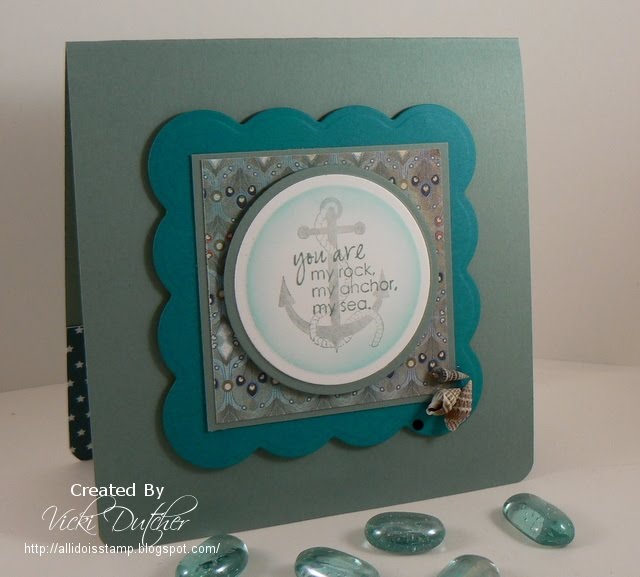
Move cursor above your name - click to open new text box- type it (Created By, Designed By etc) - change font and size to appropriate size - close box.
YOU ARE DONE creating.
{{I do not know how to bring in images (some people have scrolls etc) - if you know how PLEASE me know - I would love to add something to mine.}}
click "File" "Save" (wherever in your computer you want to save it) (
name your watermark with a .png at the end - it will not work without this)
click "
Export""
Save" and you are done.
Now, to put this watermark on your cards. This is easy once you get it - Hopefully these following steps will help you out.
"
File" "
Open" (find card you want - click twice)
Click "
file" "
Open as layer"
Find your watermark - double click
Watermark is now on your card.
To SIZE it, click "
Layer " "
Scale" size about 225
In the box to the right, click on the "
+" and then "
move" [bottom of the same box]
Drag watermark to where you want it on your card
Click "
Merge visable" "
merge"
Click "
File" "
Save" "
Export"
Congratulations YOU HAVE COMPLETED MAKING AND USING A WATERMARK!!
Please let me know how this worked out for you.
















 I
I